
Auto-renew on a free OnlyFans page is a setting, not a trap, and it can be switched off in under a minute. This guide walks through where the setting lives, what to check after you change it, and how to confirm that no future charge will appear. It also covers the difference between cancelling auto-renew and deleting an account, plus the small errors that leave billing quietly active.
Free pages on OnlyFans are pages where the subscription price is set to $0. Creators on those pages earn through pay-per-view messages and tips rather than monthly billing. That means the risk of an unwanted charge is lower, but auto-renew records and card tokens can still sit quietly in your account.
The routine below is built around visible confirmation. You change a setting, you look for the screen that proves the change saved, and you keep a record of it. That is the whole method, and it works the same whether you follow one page or several.
Renewal screen
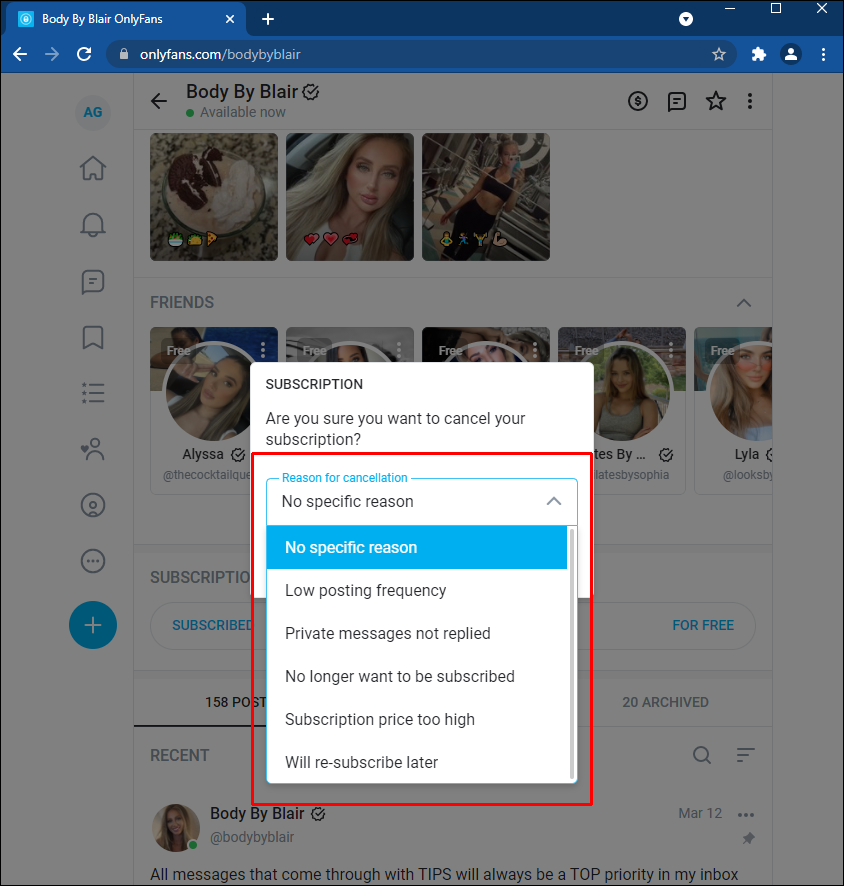
Auto-renew only exists on pages that charge a subscription. A page priced at $0 has nothing to renew, so the toggle you are looking for may not appear at all. If it does appear, it usually sits beside the subscription status rather than in general account settings.
Check these places in order, because a setting can be mirrored in more than one screen:
- Your subscriptions list, where each active page shows its renewal status.
- The individual creator page, under the subscription button or status label.
- Your account settings, under the billing or subscription history area.
- Your email inbox, for the original subscription confirmation message.
- Your card or payment app, for a saved recurring payment authorisation.
Paid subscriptions on the platform range from $4.99 at the minimum to $49.99 at the maximum, with typical paid pages sitting between $4.99 and $15 and averaging roughly $5 to $10. There is no base price below $4.99; only promotional first months may dip under that figure. Knowing the numbers helps you spot a charge that does not match any page you actually follow.
If you have never paid for anything and only follow free pages, your subscriptions list is usually empty or shows a $0 status. In that case there is no renewal to cancel, and the remaining checks are about card safety rather than platform billing.

Cancel steps
The cancellation itself is a short sequence. What matters is not the clicking but the confirmation screen at the end, so read each step against what you should see afterward.
| Step | What you should see afterward |
| Open your subscriptions list | Each followed page with its price and renewal label |
| Select the page you want to stop | The creator page or a subscription detail panel |
| Find the auto-renew control | A toggle, switch, or text link marked for renewal |
| Turn renewal off | A prompt asking you to confirm the change |
| Confirm the change | A success message and a status reading as not renewing |
| Reload the page | The same non-renewing status, still showing |
One detail catches people out. When a creator raises the subscription price, auto-renew stops automatically, and existing access lasts until the current paid period ends. So a higher price on a page you follow is not a billing error; it is the platform pausing renewal until you accept the new amount.
Tip: after switching renewal off, take a screenshot of the confirmation screen with the date visible. If a charge appears later, that image is the fastest way to settle the question with support.
If no toggle appears and the page is free, there is nothing to switch off. Move on to the confirmation checks below and treat the exercise as a card hygiene review instead.
Confirmation
A setting change is only real once something outside the settings screen records it. Collect at least two of the following before you consider the job finished.
- An on-screen success message confirming renewal was switched off.
- A subscription status that reads as not renewing after a page reload.
- An email or in-app notification confirming the change.
- An updated entry in your payment history showing no upcoming charge.
- A screenshot of the confirmation screen saved with the date.
Note that cancelling renewal does not refund the current period and does not remove access immediately. You keep what you already paid for, and the page drops away when that period ends. That is normal behaviour, not a sign the cancellation failed.
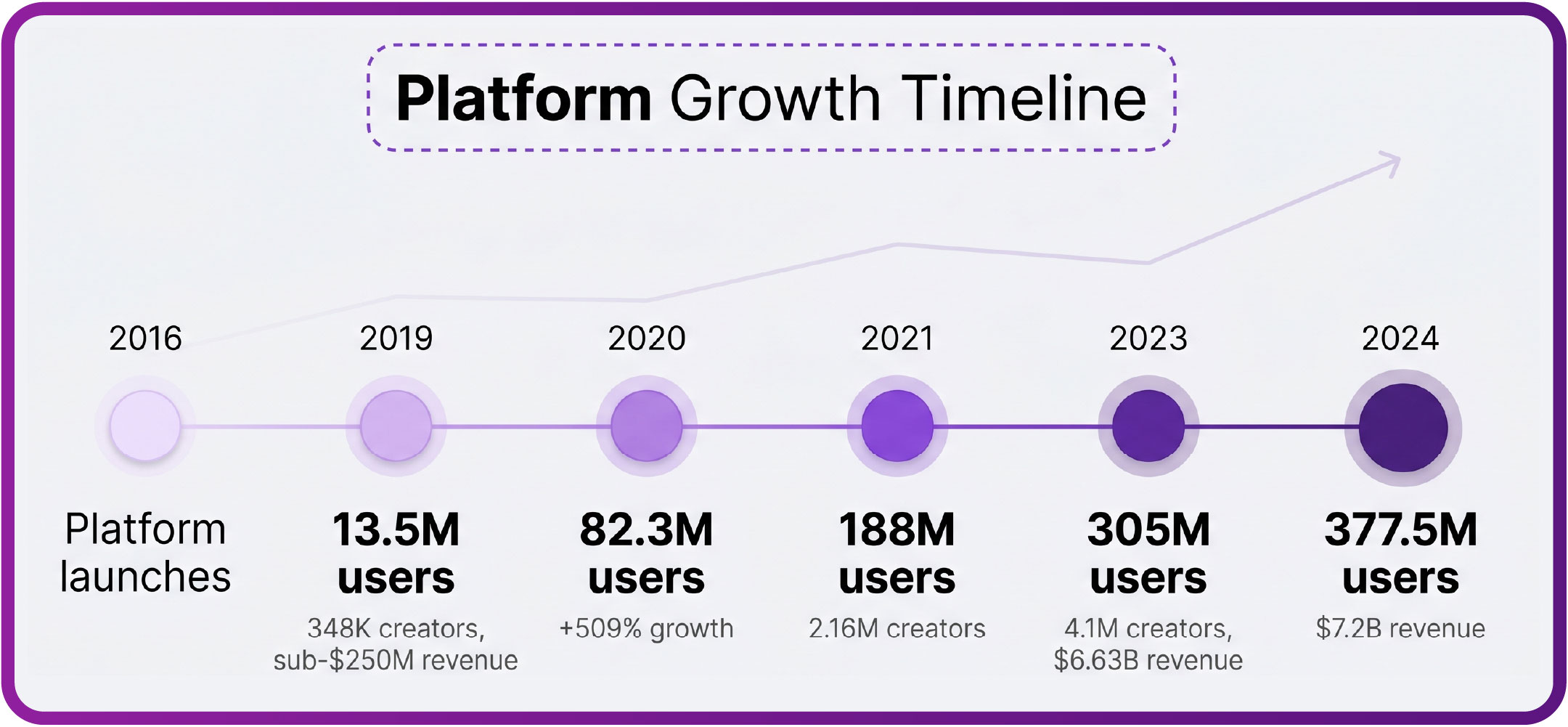
The platform takes a 20% fee on everything, including subscriptions, tips, and pay-per-view messages, and the creator keeps 80%. Free-page creators therefore depend on tips and paid messages rather than renewals, which is one reason a free page may keep messaging you after your subscription status changes.
Ranking sites such as BestOnlyFans exist partly because the platform has no built-in discovery feed or directory. That same lack of a central feed means there is no single page that lists every renewal you hold, so your subscriptions list remains the closest thing to a control panel.
Card alerts
Your bank is often the first place an unwanted charge becomes visible, because card notifications arrive whether or not you opened the app. Turn on the following alerts if your provider offers them:
- A push notification for every card transaction, with no minimum amount.
- A recurring payment or subscription alert, if your provider separates those.
- A weekly balance summary so small charges do not hide between larger ones.
- A failed-payment alert, which often reveals a card still linked to a merchant.
If a charge appears after you cancelled, compare its date against your saved confirmation. A charge dated before the cancellation belongs to the previous period and is expected. A charge dated after it is worth querying with your bank and with platform support. For a starting point, free onlyfans viewer extension collects free pages.
Some people prefer to remove the saved card entirely. That stops future charges at the source, but it also blocks any new purchase you might want later, including tips and pay-per-view unlocks. Decide which matters more before you delete the payment method.
Access impact
Cancelling renewal and deleting an account are different actions with different outcomes. The table below sets out what changes in each case.
| Action | Access after the change | Reversible |
| Cancel auto-renew on a paid page | Access continues until the paid period ends | Yes, by resubscribing |
| Cancel auto-renew on a free page | Access usually continues as before | Not applicable |
| Delete the account | Access ends and history is removed | No |
| Remove the saved card | Access continues but purchases fail | Yes, by adding a card |
For most readers the first row is the one that matters. Cancelling renewal is a low-impact action: it stops the next charge without taking anything away that you already paid for. A free onlyfans viewer extension can also help you browse and compare pages before you commit to any paid subscription at all.
Deleting an account is the heavier option and should be reserved for cases where you want no further contact. If your goal is simply to stop a charge, cancelling renewal is enough.
Common errors
Most failed cancellations come down to a handful of repeatable mistakes. Each one leaves renewal quietly active while giving the impression the job is done.
- Closing the browser before the confirmation screen loads, so the change never saves.
- Assuming that unfollowing a page also cancels its renewal.
- Ignoring a price-change notice, which pauses renewal but does not remove the record.
- Cancelling on one device and never checking whether the status synced.
- Deleting the app instead of changing the setting inside the account.
- Relying on a bank block alone while the platform record stays open.
A useful habit is to verify on a second device or in a fresh browser session. If the non-renewing status shows in both places, the change is almost certainly saved. If it shows in only one, repeat the steps and watch for the confirmation message again.
Readers who follow several pages at once sometimes lose track of which one is which. Keep a short written list of page names, prices, and cancellation dates. BestOnlyFans and similar directories help with discovery, but your own list is what settles billing questions.
Monthly check
A five-minute review once a month catches nearly every problem before it becomes a charge. The order below keeps it quick and predictable.
- Open your subscriptions list and read the renewal status of each entry.
- Compare each active price against your card statement for the same period.
- Check your email for price-change or renewal notices you may have missed.
- Review your bank alerts for any charge you cannot match to a page.
- Update your written list with dates and any status changes.
Set a calendar reminder for the same day each month so the review does not depend on memory. If you prefer a stricter approach, cancel renewal immediately after subscribing to any paid page and resubscribe manually only when you want another period.
Free pages carry little billing risk, but the same routine protects you if a page later switches to a paid model. Doing the check while everything is calm is far easier than untangling it after a charge appears. BestOnlyFans refreshes its rankings every month.
FAQ
Can I cancel auto-renew on a free OnlyFans page?
Usually there is nothing to cancel, because a $0 page has no renewal cycle. If a toggle appears, switch it off and confirm the status reads as not renewing.
Does cancelling renewal remove my access straight away?
No. On a paid page you keep access until the current paid period ends. On a free page, access generally continues as before.
Why did my auto-renew stop without me doing anything?
A creator raising the subscription price pauses auto-renew automatically. Access lasts until the current paid period ends, and renewal resumes only if you accept the new price.
What should I keep as proof of cancellation?
Save a screenshot of the confirmation screen with the date, plus any email or in-app notice. Two records are enough to resolve most billing questions later.